
Searching for a lightweight and powerful cloud storage system for a DietPi system which is easier to handle than Nextcloud?
With File Browser we offer a solution for this purpose!
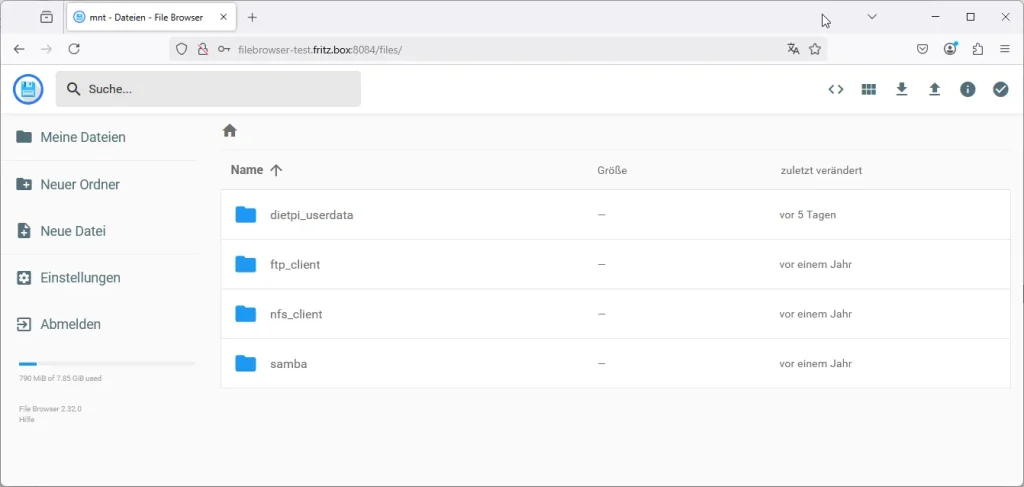
This post describes its benefits, the installation and the basic configuration/management options. File Browser is so easy to use that no user documentation for the basic use case “storing and retrieving files in a cloud storage application” is needed.
Table of contents
1. Introduction and installation
1.1 The File Browser application and its benefits
1.1.1 Features
Comparing File Browser to other cloud systems like Netcloud, it offers these benefits:
- Lightweight: It can run on a system with 256 MB RAM
- It is quick: Copying/handling of data is very fast
- Usability: Very easy to use GUI with many drag&drop features
- Media data: Can be viewed within File Browser (e.g. photos, videos, documents)
- Data structure copy: Drag&drop of complete directory structures
- Local copying: Local storage management, data can be copied “by hand” to the File Browser’s data directory
- Command line configuration: Enables automated/scripted base installation
1.1.2 Basic structure
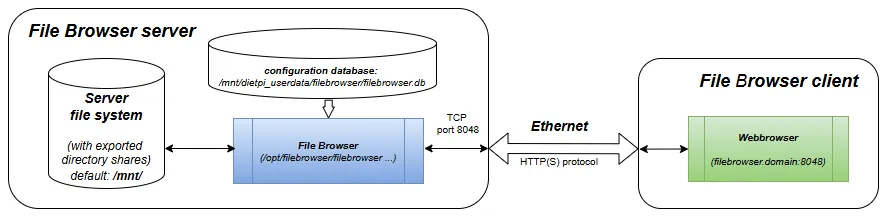
Access and navigation to the server file system is achieved within the webbrowser, this can be seen in the screenshot above.
1.1.3 Limitations
The Filebrowser application has some limitations compared to larger cloud storage solutions. E.g., it lacks these features:
- No quota for users
- No FTP, SFTP, FTPS, WebDAV,… access option
1.2 Installing/Updating File Browser
1.2.1 Installation
Installation is easily done via dietpi-software interactive menu (section “Cloud & Backup systems”).
Alternatively it can be installed via the command line:
dietpi-software install 1981.2.2 Updating an installation
An update can be achieved via
dietpi-software reinstall 198This updates the software package and leaves all configuration untouched.
2. Configuration
2.1 Configuration basics
The configuration can be done with the two options GUI based and command line (CLI) based.
In addition, the configuration can be exported/imported to/from files.
Below there are some typical configuration options described. They are only a small part of the various File Browser features.
2.1.1 GUI based configuration
The File Browser GUI is accessed via port 8084 with the following default login:
- URL =
http://<your.IP>:8084 - Username =
dietpi - Password =
<your global password>
The GUI based configuration with its several configuration tabs can be invoked via “Settings”:
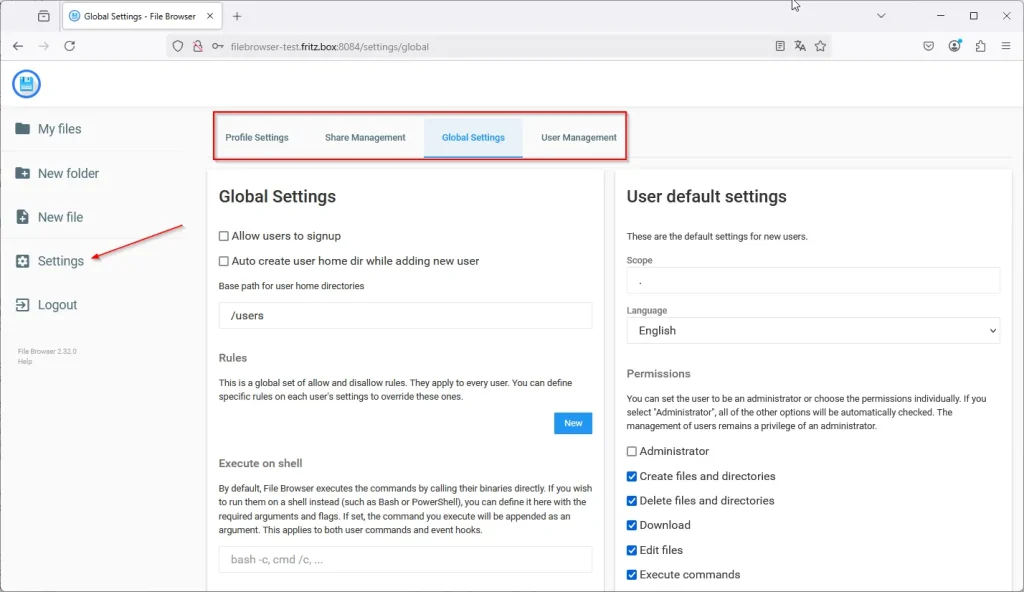
Changes can be done and activated immediately by klicking “Update” in the dialogs.
2.1.2 Command line based configuration
The command line based configuration gives the identical configuration options like the GUI based configuration.
The difference is, that configuration changes can only be made if the File Browser is in the stopped state:
systemctl stop filebrowser
<changing configuration options>
systemctl start filebrowser
If the File Browser service is not stopped, a timeout may occur with an timeout error message like:
2025/02/15 13:33:24 Using database: /mnt/dietpi_userdata/filebrowser/filebrowser.db
2025/02/15 13:33:25 timeout
An advantage of the CLI based configuration is, that this can be used within scripts for automated File Browser configuration setups. E.g. if you need to add many users, doing this via CLI might be an efficient choice.
The configuration options are described in detail within the File Browser configuration documentation.
2.1.3 Configuration export/import (via files)
The configuration can be exported/imported to/from .yaml and .json files in the command line.
Example commands for this are
/opt/filebrowser/filebrowser config export ./config.yaml/opt/filebrowser/filebrowser config export ./config.jsonThe import commands are analog (/opt/filebrowser/filebrowser config import ./config.json).
Remark: Don’t forget to stop/start the File Browser service (filebrowser.service).
2.2 Changing the data directory
The base directory of the File Browser data directory structure can be set via the CLI. The following example shows how to set the base directory to /mnt/dietpi_userdata/FilebrowserData.
In a first step, the new directory has to be generated with its group set to dietpi to ensure that the filebrowser users can manage directories via the filebrowser UI (e.g. add a new directory).
Additionally, the directory permission should be set to drwxrwxr-x (0775):
mkdir -p /mnt/dietpi_userdata/FilebrowserData
chown dietpi:dietpi /mnt/dietpi_userdata/FilebrowserData
chmod 0775 /mnt/dietpi_userdata/FilebrowserData
In the second step, the File Browser configuration is changed:
systemctl stop filebrowser
/opt/filebrowser/filebrowser config set -r /mnt/dietpi_userdata/FilebrowserData -d /mnt/dietpi_userdata/filebrowser/filebrowser.db
systemctl start filebrowser
2.3 User management
The user management of the File Browser can be set within the GUI:
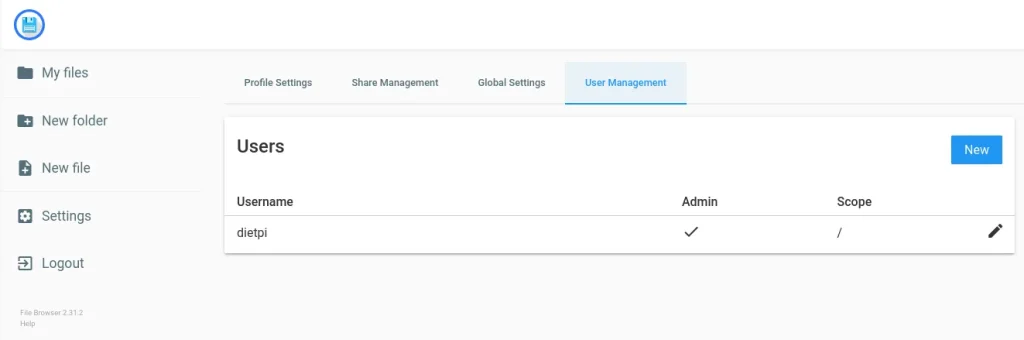
In the CLI, the user management can also be handled. The following commands are the common used ones.
2.3.1 Show users
/opt/filebrowser/filebrowser users ls -d /mnt/dietpi_userdata/filebrowser/filebrowser.db2.3.2 Add a standard user
/opt/filebrowser/filebrowser users add --perm.create --perm.delete --perm.download --perm.modify --perm.rename --perm.share -d /mnt/dietpi_userdata/filebrowser/filebrowser.db2.3.3 Add an admin user
/opt/filebrowser/filebrowser users add --perm.admin -d /mnt/dietpi_userdata/filebrowser/filebrowser.db2.3.4 Delete a user
/opt/filebrowser/filebrowser users rm -d /mnt/dietpi_userdata/filebrowser/filebrowser.db2.3.5 Example
Adding two users (1 x standard, 1 x admin) and display the whole user list:
root@dietpi:~# /opt/filebrowser/filebrowser users add newadminuser newadminuserpassword --perm.admin -d /mnt/dietpi_userdata/filebrowser/filebrowser.db
root@dietpi:~# /opt/filebrowser/filebrowser users add newuser newuserpassword --perm.create --perm.delete --perm.download --perm.modify --perm.rename --perm.share -d /mnt/dietpi_userdata/filebrowser/filebrowser.db
root@dietpi:~# /opt/filebrowser/filebrowser users ls -d /mnt/dietpi_userdata/filebrowser/filebrowser.db
2025/02/09 20:53:38 Using database: /mnt/dietpi_userdata/filebrowser/filebrowser.db
ID  Username          Scope  Locale  V. Mode  S.Click  Admin  Execute  Create  Rename  Modify  Delete  Share  Download  Pwd Lock
1   dietpi            /      en      list     false    false  false    false   false   false   false   false  false     false
2   newadminuser      /      en      list     false    true   true     true    true    true    true    true   true      false
3   newuser           /      en      list     false    false  true     true    true    true    true    true   true      false
2.3.6 Changing the user’s root directory
Beside the option to change the global File Browser data directory root, every user can have a different user specific root directory below the global data directory.
This can be used to separate the user’s data from each other.
The user directory option is called “Scope” and can be set via the GUI in the user management:
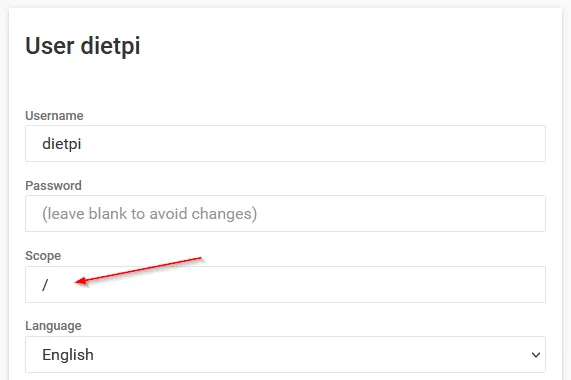
The path given in the “Scope” field is relative to the global data directory root.
Example: In the default case of /mnt as the global data directory root, a user might have it’s data root in /mnt/dietpi_userdata/FilebrowserData. In this case the “Scope” field is set to /dietpi_userdata/FilebrowserData.
2.4 Adding SSL (e.g. snakeoil)
To add SSL (HTTPS), as a first option, a snakeoil certificate can be used to have a .key and a .pem file for authentication. At first, ssl-cert is installed:
apt install ssl-certThis generates two files:
/etc/ssl/certs/ssl-cert-snakeoil.pem/etc/ssl/private/ssl-cert-snakeoil.key
As next, the user filebrowser has to be added to the group ssl-cert to be able to read the .pem and .key files into the File Browser configuration:
adduser filebrowser ssl-certAs the last step, the File Browser configuration has to be changed:
systemctl stop filebrowser
/opt/filebrowser/filebrowser config set -t /etc/ssl/certs/ssl-cert-snakeoil.pem -k /etc/ssl/private/ssl-cert-snakeoil.key -d /mnt/dietpi_userdata/filebrowser/filebrowser.db
systemctl start filebrowser
If all went good, the status can be checked:
systemctl status filebrowserClearing the certificate in the File Browser configuration can be achieved with
/opt/filebrowser/filebrowser config set -t '' -k '' -d /mnt/dietpi_userdata/filebrowser/filebrowser.db3. Diagnosis
3.1 Show File Browser configuration
In addition to the export of the File Browser configuration it also can be displayed via
systemctl stop filebrowser
/opt/filebrowser/filebrowser config cat -d /mnt/dietpi_userdata/filebrowser/filebrowser.db
systemctl start filebrowser
This gives an output like this (extract):
2025/02/15 13:33:24 Using database: /mnt/dietpi_userdata/filebrowser/filebrowser.db
Sign up: false
Create User Dir: true
Auth method: json
Shell:

Branding:
Name:
Files override:
Disable external links: false
Disable used disk percentage graph: false
Color:
Theme:

Server:
Log: stdout
Port: 8084
Base URL:
Root: /mnt
Socket:
Address: 0.0.0.0
TLS Cert:
TLS Key:
Exec Enabled: false

...
3.2 Show File Browser version
The version can be displayed with
/opt/filebrowser/filebrowser version -d /mnt/dietpi_userdata/filebrowser/filebrowser.dbThis gives an output in the type of
File Browser v2.32.0/3d6c5152
This can be compared to https://github.com/filebrowser/filebrowser/releases to check for newer releases.
3.3 File Browser service status and journal
The status of the service can be viewed via
systemctl status filebrowser.serviceThe journal output is displayed via
journalctl -u filebrowser
The File Browser offers an intuitive web-based interface that allows users to easily navigate their file system. This makes it accessible even for those who may not be familiar with command-line operations.
Nice service to run. Simplicity as the main feature!
I would add the the url to reach the site like http:\\:8084 in chapter 2.
The only way to find out is the overview of the structure in chapter one.
Brackets are removed while posting.
http://IP:8084
Thx for the hint. I added a short section about it including the default credentials.
Hi. I cannot create a new folder or file!
Can you check for the file/directory permissions?
See also https://dietpi.com/blog/?p=3806#changing_the_data_directory
Of course! Thanks StephanStS