# IMPORTANT:
# - This is intended for advanced users, unless you know what you are doing, do not edit this file. Please use the DietPi programs instead.
# - Do not remove uncommented lines, as the items are scraped by DietPi programs, on demand.

#------------------------------------------------------------------------------------------------------
##### DietPi-Automation settings, applied on first boot of DietPi only, ONCE! #####
#------------------------------------------------------------------------------------------------------
# Initial user and default software installation password
# - Sets "root" and "dietpi" user's login passwords and is used by dietpi-software as default for software installs which require a password.
# - Once applied during first run setup, the password is removed from this file, encrypted and stored to a safer location to be used by dietpi-software only.
# - WARN: The default SSH server Dropbear does not support passwords over 100 bytes. Certain special characters, and such with accents, take 2 bytes.
# - WARN: We cannot guarantee that all software options can handle special characters like $"|\.
AUTO_SETUP_GLOBAL_PASSWORD=dietpi

##### Language/Regional options #####
# Locale e.g.: "en_GB.UTF-8" / "de_DE.UTF-8" | One entry and UTF-8 ONLY!
AUTO_SETUP_LOCALE=de_DE.UTF-8

# Keyboard layout e.g.: "gb" / "us" / "de" / "fr"
AUTO_SETUP_KEYBOARD_LAYOUT=de

# Time zone e.g.: "Europe/London" / "America/New_York" | Full list: https://en.wikipedia.org/wiki/List_of_tz_database_time_zones
AUTO_SETUP_TIMEZONE=Europe/Berlin

##### Network options #####
# Enable Ethernet or WiFi adapter: 1=enable | 0=disable
# - If both Ethernet and WiFi are enabled, WiFi will take priority and Ethernet will be disabled.
# - If using WiFi, please edit dietpi-wifi.txt to pre-enter credentials.
AUTO_SETUP_NET_ETHERNET_ENABLED=1
AUTO_SETUP_NET_WIFI_ENABLED=0

# WiFi country code: 2 capital letter value (e.g. GB US DE JP): https://en.wikipedia.org/wiki/ISO_3166-1_alpha-2
# - NB: This choice may be overridden if the WiFi access point sends a country code.
AUTO_SETUP_NET_WIFI_COUNTRY_CODE=GB

# Enter your static network details below, if applicable.
AUTO_SETUP_NET_USESTATIC=1
AUTO_SETUP_NET_STATIC_IP=192.168.100.188
AUTO_SETUP_NET_STATIC_MASK=255.255.255.0
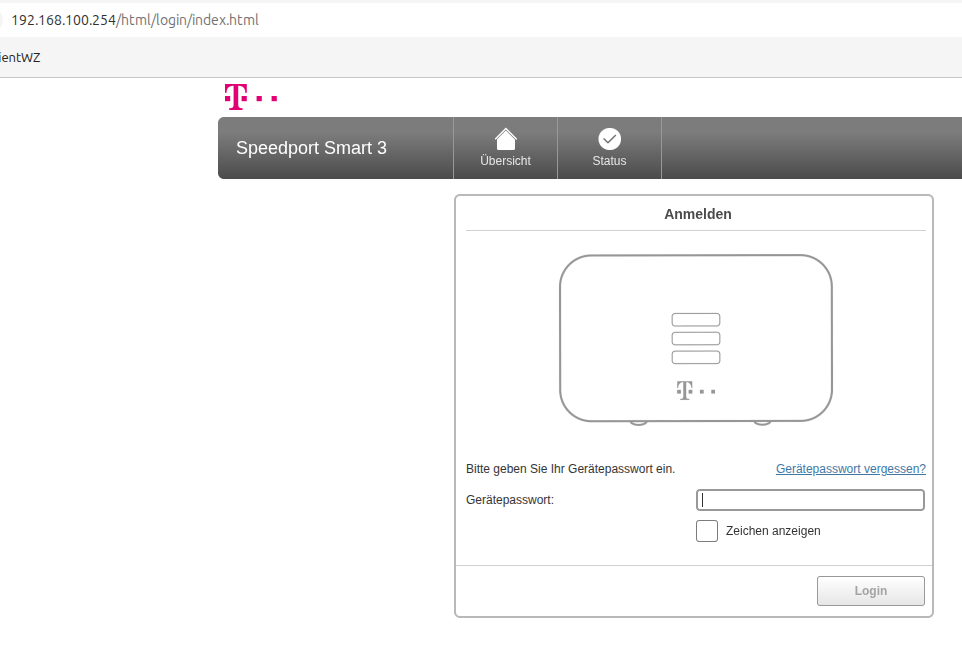
AUTO_SETUP_NET_STATIC_GATEWAY=192.168.100.254
AUTO_SETUP_NET_STATIC_DNS=9.9.9.9 149.112.112.112

# Set to "1" to convert DHCP leased network settings into static settings automatically on first boot.
AUTO_SETUP_DHCP_TO_STATIC=0

# Hostname
AUTO_SETUP_NET_HOSTNAME=DietPi

# Force Ethernet speeds: 0=automatic speed | 10 = 10 Mbit/s | 100 = 100 Mbit/s etc.
# - Use this when your Ethernet adapter has an unstable 1 Gbit/s link.
AUTO_SETUP_NET_ETH_FORCE_SPEED=100

# Delay service starts at boot until network is established: 0=disabled | 1=enabled
AUTO_SETUP_BOOT_WAIT_FOR_NETWORK=1

##### Misc options #####
# Swap space size to generate: 0 => disable | 1 => auto | 2 and up => size in MiB
AUTO_SETUP_SWAPFILE_SIZE=1
# Swap space location: "zram" => swap space on /dev/zram0 (auto-size = 50% of RAM size) | /path/to/file => swap file at location (auto-size = 2 GiB minus RAM size)
AUTO_SETUP_SWAPFILE_LOCATION=/var/swap

# Set to "1" to disable HDMI/video output and framebuffers on Raspberry Pi, to reduce power consumption and memory usage: Works on RPi only!
AUTO_SETUP_HEADLESS=0

# Serial console: Set to "0" if you do not require a serial console. It will then be disabled automatically on first boot.
# - If you leave it at "1", and first login does not happen on a serial console, a dialogue offers to disable it instead.
CONFIG_SERIAL_CONSOLE_ENABLE=1

# Unmask (enable) systemd-logind service (including dbus), which is masked by default on DietPi
AUTO_UNMASK_LOGIND=0

# Install APT packages automatically after first run setup.
# - Add as many APT package names as you wish, separated by space.
# - They will be installed after dietpi-software options and before the script defined via AUTO_SETUP_CUSTOM_SCRIPT_EXEC (see below) is executed.
# - E.g. the following (without the leading "#") will install the APT packages iotop, iptables and xz-utils:
#AUTO_SETUP_APT_INSTALLS=iotop iptables xz-utils

# Custom Script (pre-networking and pre-DietPi install)
# - Allows you to automatically execute a custom script before network is up on first boot.
# - Copy your script to /boot/Automation_Custom_PreScript.sh and it will be executed automatically.
# - Executed script log: /var/tmp/dietpi/logs/dietpi-automation_custom_prescript.log

# Custom Script (post-networking and post-DietPi install)
# - Allows you to automatically execute a custom script at the end of DietPi install.
# - Option 0 = Copy your script to /boot/Automation_Custom_Script.sh and it will be executed automatically.
# - Option 1 = Host your script online, then use e.g. AUTO_SETUP_CUSTOM_SCRIPT_EXEC=https://myweb.com/myscript.sh and it will be downloaded and executed automatically.
# - Executed script log: /var/tmp/dietpi/logs/dietpi-automation_custom_script.log
AUTO_SETUP_CUSTOM_SCRIPT_EXEC=0

# Restore a DietPi-Backup on first boot: 0 => disable | 1 => interactive restore (show list of found backups) | 2 => non-interactive restore (restore first found backup)
# - Simply attach the drive/disk/stick which contains the backup. All attached drives will be mounted temporarily and searched automatically.
AUTO_SETUP_BACKUP_RESTORE=0

##### Software options #####
# SSH server choice: 0=none/custom | -1=Dropbear | -2=OpenSSH
AUTO_SETUP_SSH_SERVER_INDEX=-2

# SSH server pubkey
# - Public key(s) for "root" and "dietpi" users, which will be added to ~/.ssh/authorized_keys
# - Use the same setting multiple times for adding multiple keys.
# - See SOFTWARE_DISABLE_SSH_PASSWORD_LOGINS below for disabling SSH password logins.
#AUTO_SETUP_SSH_PUBKEY=ssh-ed25519 AAAAAAAA111111111111BBBBBBBBBBBB222222222222cccccccccccc333333333333 mySSHkey

# Logging mode choice: 0=none/custom | -1=RAMlog hourly clear | -2=RAMlog hourly save to disk + clear | -3=Rsyslog + Logrotate
AUTO_SETUP_LOGGING_INDEX=-1
# RAMlog max tmpfs size (MiB). 50 MiB should be fine for single use. 200+ MiB for heavy webserver access log etc.
AUTO_SETUP_RAMLOG_MAXSIZE=50

# Dependency preferences
# - DietPi-Software installs all dependencies for selected software options automatically, which can include a webserver for web applications, a desktop for GUI applications and one usually wants a web browser on desktops.
# - Especially for non-interactive first run installs (see AUTO_SETUP_AUTOMATED below), you may want to define which webserver, desktop and/or browser you want to have installed in such case. For interactive installs you will be always asked to pick one.
# - With below settings you can define your preference for non-interactive installs. However, it will only installed if any other selected software requires it, and an explicit webserver/desktop/browser selection overrides those settings:
# - Webserver preference: 0=Apache | -1=Nginx | -2=Lighttpd
AUTO_SETUP_WEB_SERVER_INDEX=0
# - Desktop preference: 0=LXDE | -1=Xfce | -2=MATE | -3=LXQt | -4=GNUstep
AUTO_SETUP_DESKTOP_INDEX=0
# - Browser preference: 0=None | -1=Firefox | -2=Chromium
AUTO_SETUP_BROWSER_INDEX=-1

# DietPi-Autostart: 0=Console | 7=Console autologin | 1=Kodi | 2=Desktop autologin | 16=Desktop | 4=OpenTyrian | 5=DietPi-CloudShell | 6=Amiberry fast boot | 8=Amiberry standard boot | 9=DDX-Rebirth | 10=CAVA Spectrum | 11=Chromium kiosk | 14=Custom script (background) | 17=Custom script (foreground)
# - This will be effective on 2nd boot, after first run update and installs have been done.
# - Related software titles must be installed either on first run installs or via AUTO_SETUP_AUTOMATED=1 + AUTO_SETUP_INSTALL_SOFTWARE_ID (see below).
AUTO_SETUP_AUTOSTART_TARGET_INDEX=0
# Autologin user name
# - This user must exist before first run installs, otherwise it will be reverted to root.
# - Applies to all autostart options but: 0, 6, 14 and 16
AUTO_SETUP_AUTOSTART_LOGIN_USER=root

##### Non-interactive first run setup #####
# On first boot, run updates, initial setup, and optional software installs without any user interaction.
# - Please change AUTO_SETUP_GLOBAL_PASSWORD when enabling this option!
AUTO_SETUP_AUTOMATED=0

# Software to automatically install
# - Requires AUTO_SETUP_AUTOMATED=1
# - List of available software IDs: https://github.com/MichaIng/DietPi/wiki/DietPi-Software-list
# - Add as many software IDs as you wish, separated by space.
# - DietPi will automatically install all dependencies, like ALSA/X11 for desktops, a webserver for web applications etc.
# - E.g. the following (without the leading "#") will install the LXDE desktop, the TigerVNC server and the Kodi media centre automatically on first boot:
#AUTO_SETUP_INSTALL_SOFTWARE_ID=23 28 31

#------------------------------------------------------------------------------------------------------
##### Misc DietPi program settings #####
#------------------------------------------------------------------------------------------------------
# DietPi-Survey: 1=opt in | 0=opt out | -1=ask on first call
# - https://dietpi.com/docs/dietpi_tools/system_configuration/#dietpi-survey
SURVEY_OPTED_IN=-1

#------------------------------------------------------------------------------------------------------
##### DietPi-Config settings #####
#------------------------------------------------------------------------------------------------------
# CPU Governor: schedutil | ondemand | interactive | conservative | powersave | performance
CONFIG_CPU_GOVERNOR=schedutil
# Ondemand Sampling Rate | Min value: 10000 microseconds (10 ms)
CONFIG_CPU_ONDEMAND_SAMPLE_RATE=25000
# Ondemand Sampling Down Factor: Sampling Rate * Down Factor / 1000 = ms (40 = 1000 ms when sampling rate is 25000)
CONFIG_CPU_ONDEMAND_SAMPLE_DOWNFACTOR=40
# Throttle Up Percentage: Percentage of average CPU usage during sampling rate at which CPU will be throttled up/down
CONFIG_CPU_USAGE_THROTTLE_UP=50

# CPU Frequency Limits: Disabled=disabled
# - Intel CPUs use a percentage value (%) from 0-100, e.g.: 55
# - All other devices must use a specific MHz value, e.g.: 1600
# - Has no effect on RPi, please set "arm_freq" and "arm_freq_min" in config.txt instead.
CONFIG_CPU_MAX_FREQ=Disabled
CONFIG_CPU_MIN_FREQ=Disabled

# Disable Intel-based turbo/boost stepping. This flag should not be required, setting <100% MAX frequency should disable Turbo on Intel CPUs.
CONFIG_CPU_DISABLE_TURBO=0

# GPU Driver | Will also be applied during 1st run if set to a value other than 'none'
#   NB: x86_64 PC only!
#   Adds support for GUI/video hardware acceleration, OpenGL/GLES, Vulkan and VA-API
# - none | Default, No GPU
# - intel
# - nvidia
# - amd
# - custom | Manual driver install (DietPi will not make driver changes to your system)
CONFIG_GPU_DRIVER=none

# System-wide proxy settings
# - Do not modify, you must use dietpi-config > "Network Options: Adapters" to apply
CONFIG_PROXY_ADDRESS=MyProxyServer.com
CONFIG_PROXY_PORT=8080
CONFIG_PROXY_USERNAME=
CONFIG_PROXY_PASSWORD=

# Connection timeout in seconds for G_CHECK_NET and G_CHECK_URL. Increase if you have a "flaky" connection or slow DNS resolver.
# - Set this to "0" to allow unlimited time, however this is not recommended to avoid unlimited hanging background scripts, e.g. daily DietPi update check.
# - A negative or non-integer value will result in the default of 10 seconds.
CONFIG_G_CHECK_URL_TIMEOUT=10
# Connection attempts with above timeout each, before G_CHECK_NET and G_CHECK_URL give up and prompt an error.
# - Any value below "1" or a non-integer value will result in the default of 2 attempts.
CONFIG_G_CHECK_URL_ATTEMPTS=2
# General connection and DNS testing
# - IPv4 address to ping when checking network connectivity. Default: 9.9.9.9 (Quad9 DNS IP)
CONFIG_CHECK_CONNECTION_IP=9.9.9.9
# - IPv6 address to ping when checking network connectivity. Default: 2620:fe::fe (Quad9 DNS IP)
CONFIG_CHECK_CONNECTION_IPV6=2620:fe::fe
# - Domain to resolve when checking DNS resolver. Default: dietpi.com
CONFIG_CHECK_DNS_DOMAIN=dietpi.com

# Daily check for DietPi updates: 0=disable | 1=enable
# - Checks are done by downloading a file of only 7 bytes.
CONFIG_CHECK_DIETPI_UPDATES=1

# Daily check for APT package updates: 0=disable | 1=check only | 2=check and upgrade automatically
# - Upgrade logs can be found at: /var/tmp/dietpi/logs/dietpi-update_apt.log
CONFIG_CHECK_APT_UPDATES=1

# Network time sync: 0=disabled | 1=boot only | 2=boot + daily | 3=boot + hourly | 4=Daemon + Drift
CONFIG_NTP_MODE=2

# Sound card
CONFIG_SOUNDCARD=none

# LCD Panel addon
# - Do not modify, you must use dietpi-config to configure/set options
CONFIG_LCDPANEL=none

# IPv6
CONFIG_ENABLE_IPV6=1

# APT mirrors which are applied to /etc/apt/sources.list | Values here will also be applied during 1st run setup
# - Raspbian: https://www.raspbian.org/RaspbianMirrors
CONFIG_APT_RASPBIAN_MIRROR=http://raspbian.raspberrypi.com/raspbian
# - Debian: https://www.debian.org/mirror/official#list
CONFIG_APT_DEBIAN_MIRROR=https://deb.debian.org/debian

# NTP server(s) applied to /etc/systemd/timesyncd.conf
# - "default": Use the NTP server(s) provided via DHCP, else the debian.pool.ntp.org NTP pool.
# - "gateway": Use the router/gateway as NTP server. Recommended, if it does provide this functionality.
# - To use another public NTP pool, see the full list at: https://www.ntppool.org/zone/@
#   Use the pool domain without leading integer and dot (without "0."), like "debian.pool.ntp.org", "pool.ntp.org" or "uk.pool.ntp.org".
# - You can also use a custom IP address, hostname or any combination of space-separated IP addresses, hostnames and NTP pool domains.
CONFIG_NTP_MIRROR=default

#------------------------------------------------------------------------------------------------------
##### DietPi-Software settings #####
#------------------------------------------------------------------------------------------------------
# Public domain name
# - If you plan to make this server accessible from the Internet, you can define its (planned) public domain name here.
# - This will be used by certain software install options as default if a public domain name is required or beneficial for it to function.
# - Currently used by:
#	Nextcloud Talk to configure it with Coturn
#	Synapse as public facing server name
#	dietpi-letsencrypt as default entry
#SOFTWARE_PUBLIC_DOMAIN_NAME=mydomain.org

# SSH Server
# - Disable SSH password logins, e.g. when using pubkey authentication
#	0=Allow password logins for all users, including root
#	root=Disable password login for root user only
#	1=Disable password logins for all users, assure that you have a valid SSH key applied!
SOFTWARE_DISABLE_SSH_PASSWORD_LOGINS=0

# WireGuard
# - Whether to install WireGuard as "Server" or "Client", relevant for unattended installs only, else a menu is shown
#SOFTWARE_WIREGUARD_MODE=Server
# - Listening UDP port to use when installing WireGuard in server mode, relevant for unattended installs only, else an inputbox is shown
#SOFTWARE_WIREGUARD_PORT=51820

# VNC Server
SOFTWARE_VNCSERVER_WIDTH=1280
SOFTWARE_VNCSERVER_HEIGHT=720
SOFTWARE_VNCSERVER_DEPTH=16
SOFTWARE_VNCSERVER_DISPLAY_INDEX=1
SOFTWARE_VNCSERVER_SHARE_DESKTOP=0

# ownCloud/Nextcloud
# - Optional username for admin account, the default is 'admin', applied during install
SOFTWARE_OWNCLOUD_NEXTCLOUD_USERNAME=admin
# - Optional data directory, default is "/mnt/dietpi_userdata/owncloud_data" respectively "/mnt/dietpi_userdata/nextcloud_data", applied during install
SOFTWARE_OWNCLOUD_DATADIR=/mnt/dietpi_userdata/owncloud_data
SOFTWARE_NEXTCLOUD_DATADIR=/mnt/dietpi_userdata/nextcloud_data

# Synapse
# - Initial admin username, relevant for unattended installs only, else an inputbox is shown
#SOFTWARE_SYNAPSE_USERNAME=dietpi

# WiFi Hotspot
SOFTWARE_WIFI_HOTSPOT_SSID=DietPi-HotSpot
# - Key requires a minimum of 8 characters
SOFTWARE_WIFI_HOTSPOT_KEY=dietpihotspot
# - 2.4 GHz WiFi channel, not effective if 5 GHz frequency is enabled
SOFTWARE_WIFI_HOTSPOT_CHANNEL=3
# - 802.11n/WiFi 4, 802.11ac/WiFi 5, 802.11ax/WiFi 6 and 5 GHz support: Note that your WiFi adapter must support it!
# - WiFi 5 support implicitly switches to 5 GHz frequency.
# - 5 GHz frequency implicitly enables WiFi 4 support if neither WiFi 4, 5 nor 6 is enabled.
SOFTWARE_WIFI_HOTSPOT_WIFI4=0
SOFTWARE_WIFI_HOTSPOT_WIFI5=0
# - WiFi 6 is only supported from Debian Bookworm on!
SOFTWARE_WIFI_HOTSPOT_WIFI6=0
SOFTWARE_WIFI_HOTSPOT_5G=0
# - A full list of supported 5 GHz WiFi channels per region can be found e.g. on Wikipedia: https://en.wikipedia.org/wiki/List_of_WLAN_channels#5_GHz_(802.11a/h/n/ac/ax)
SOFTWARE_WIFI_HOTSPOT_5G_CHANNEL=36

# X11
# - DPI 96(default) 120(+25%) 144(+50%) 168(+75%) 192(+100%)
SOFTWARE_XORG_DPI=96

# Chromium
SOFTWARE_CHROMIUM_RES_X=1280
SOFTWARE_CHROMIUM_RES_Y=720
SOFTWARE_CHROMIUM_AUTOSTART_URL=https://dietpi.com/

# Home Assistant
# - Optional Python build dependencies and modules, possibly required for certain HA components
#	Space separated list (no quotation!), will be installed together with Home Assistant automatically, if present
SOFTWARE_HOMEASSISTANT_APT_DEPS=
#	Add Python modules with version string at best, e.g.: firstModule==1.2.3 secondModule==4.5.6
SOFTWARE_HOMEASSISTANT_PIP_DEPS=

# K3s
# Command with flags to use for launching K3s in the service
# The value of this variable is copied directly into the INSTALL_K3S_EXEC environment variable before
# running the K3s installer.
# https://rancher.com/docs/k3s/latest/en/installation/install-options/#options-for-installation-with-script
#
# Optionally, you can add a configuration file named /boot/dietpi-k3s.yaml,
# which will be copied into place during installation.
# https://rancher.com/docs/k3s/latest/en/installation/install-options/#configuration-file
SOFTWARE_K3S_EXEC=

# DietPi-Dashboard
# Version to use
# - Stable = Use release version of DietPi-Dashboard.
# - Nightly = Use unstable version DietPi-Dashboard. Might have bugs, but will probably have more features.
SOFTWARE_DIETPI_DASHBOARD_VERSION=Stable
# Whether to only install backend or not
SOFTWARE_DIETPI_DASHBOARD_BACKEND=0

# PiVPN
# - For an unattended install, place a config file named "unattended_pivpn.conf" into the boot partition/directory.
# - For example configs, have a look at: https://github.com/pivpn/pivpn/tree/master/examples

# Shairport Sync
# - Uncomment and set to "2" to install experimental AirPlay 2 build: https://github.com/mikebrady/shairport-sync/blob/188aa527ba0689d99765b5166331f15cffd0948d/AIRPLAY2.md
#SOFTWARE_SHAIRPORT_SYNC_AIRPLAY=2

# UrBackup Server
# - Backup path, optional, defaults to "/mnt/dietpi_userdata/urbackup", effective on fresh UrBackup Server installs only
SOFTWARE_URBACKUP_BACKUPPATH=/mnt/dietpi_userdata/urbackup

#------------------------------------------------------------------------------------------------------
##### Dev settings #####
#------------------------------------------------------------------------------------------------------
DEV_GITBRANCH=master
DEV_GITOWNER=MichaIng

#------------------------------------------------------------------------------------------------------
##### Settings, automatically added by dietpi-update #####
#------------------------------------------------------------------------------------------------------