Linux DietPi 7.0.6 #1 SMP PREEMPT Mon May 11 14:37:29 UTC 2026 aarch64 GNU/Linux
Architecture | dpkg --print-architecture
arm64
SBC model | echo $G_HW_MODEL_NAME or (EG: RPi3)
Quartz64 (aarch64), manufacturer Pine64
Power supply used | (EG: 5V 1A RAVpower)
Pine64 official power supply for Quartz64
SD card used | (EG: SanDisk ultra)
No SD card, the main disk is an eMMC card. The SBC is connected tot 2 hard drives for data and backup storage
Additional Information (if applicable)
The problem wasn’t there at the beginning (around 1,5 years ago) but began popping up around 5 months ago. At that time, restarting the network daemon with “systemctl restart networking” (sometimes 2 or 3 times) did the trick and the speed came back. Now it is always slow, no matter how many times I restart the daemon or the whole system.
I test the network speed with the “speedtest-cli --secure” command
The SBC is directly connected to my router with a gigabit ethernet cable. These cables work well with my laptop (which shows around 200Mb/s when tested with the same command)
I used the “My traceroute” (mtr) while checking the regular causes and I noticed I have a quite big amount of lost packets:
I did some tests between my desktop and my SBC both in the same local network.
When I do a test from my desktop (client) to the SBC (server), the result is nice and fast:
------------------------------------------------------------
Client connecting to 192.168.1.140, TCP port 5001
TCP window size: 16.0 KByte (default)
------------------------------------------------------------
[  1] local 192.168.1.39 port 55542 connected with 192.168.1.140 port 5001
[ ID] Interval       Transfer     Bandwidth
[  1] 0.00-10.03 sec  1.09 GBytes   934 Mbits/sec
When I do a test from my SBC (client) to my desktop (server), the result is catastrophic:
------------------------------------------------------------
Client connecting to 192.168.1.39, TCP port 5001
TCP window size: 16.0 KByte (default)
------------------------------------------------------------
[  1] local 192.168.1.140 port 52592 connected with 192.168.1.39 port 5001
[ ID] Interval       Transfer     Bandwidth
[  1] 0.0000-20.2429 sec   211 KBytes  85.3 Kbits/sec
Though in that test I noticed both machines are reporting different speeds. The above is from SBC and mentions a speed of 85.3 Kb/s. For that exact same test, the desktop reports a speed of 47.9:
------------------------------------------------------------
Server listening on TCP port 5001
TCP window size:  128 KByte (default)
------------------------------------------------------------
[  1] local 192.168.1.39 port 5001 connected with 192.168.1.140 port 52592
[ ID] Interval       Transfer     Bandwidth
[  1] 0.00-36.03 sec   211 KBytes  47.9 Kbits/sec
Ok this looks kinda “good” and narrows it down.
In the kernel logs you see a lot of
[  211.844574] rk_gmac-dwmac fe010000.ethernet eth0: Link is Up - 1Gbps/Full - flow control rx/tx
[  302.106581] rk_gmac-dwmac fe010000.ethernet eth0: Link is Down
and you see assymetric speeds, while one direction is normal the other directions is pretty bad (from SBC to dsektop).
The simplest test now would be to run the iperf test again with
another cable
another port on the router
If it’s still slow, there are a few other reasons why that might be the case, e.g. energy saving options or flow control bug (which could be introduced with some kernel update)
I changed the SBC to have another cable and to be connected to another port on the router (and gave it a reboot). The results of the iperf tests are the same, still fast (around 930 Mb/s) from desktop to SBC and still slow (40 to 100 Kb/s) the other way around.
To be sure I put my laptop on the cable and port the SBC was connected with and did the iperf tests (laptop < - > desktop) a few times in both directions. All the tests had speeds around 930Mb/s in both directions.
Which exact Quartz64 model is it? A, B, or SOQuartz (if so which baseboard)?
Might be expected that disabling and re-enabling the interface resets settings. It is powered off entirely in this case. I am no expert in these regards, but might be worth to test each of the ethtool commands separately, without resetting the interface. Also, this can be used to check the status of the settings:
ethtool -a eth0
ethtool -k eth0
ethtool --show-eee eth0
It is a standalone Quartz64 model A with 8Gb memory.
ethtool -a eth0
Pause parameters for eth0:
Autonegotiate:	on
RX:		off
TX:		off
RX negotiated: on
TX negotiated: on
ethtool -k eth0
Features for eth0:
rx-checksumming: on
tx-checksumming: on
	tx-checksum-ipv4: on
	tx-checksum-ip-generic: off [fixed]
	tx-checksum-ipv6: on
	tx-checksum-fcoe-crc: off [fixed]
	tx-checksum-sctp: off [fixed]
scatter-gather: on
	tx-scatter-gather: on
	tx-scatter-gather-fraglist: off [fixed]
tcp-segmentation-offload: off
	tx-tcp-segmentation: off
	tx-tcp-ecn-segmentation: off [fixed]
	tx-tcp-mangleid-segmentation: off
	tx-tcp6-segmentation: off
	tx-tcp-accecn-segmentation: off [fixed]
generic-segmentation-offload: off
generic-receive-offload: off
large-receive-offload: off [fixed]
rx-vlan-offload: on
tx-vlan-offload: off [fixed]
ntuple-filters: off [fixed]
receive-hashing: off [fixed]
highdma: on [fixed]
rx-vlan-filter: off [fixed]
vlan-challenged: off [fixed]
tx-gso-robust: off [fixed]
tx-fcoe-segmentation: off [fixed]
tx-gre-segmentation: off [fixed]
tx-gre-csum-segmentation: off [fixed]
tx-ipxip4-segmentation: off [fixed]
tx-ipxip6-segmentation: off [fixed]
tx-udp_tnl-segmentation: off [fixed]
tx-udp_tnl-csum-segmentation: off [fixed]
tx-gso-partial: off [fixed]
tx-tunnel-remcsum-segmentation: off [fixed]
tx-sctp-segmentation: off [fixed]
tx-esp-segmentation: off [fixed]
tx-udp-segmentation: on
tx-gso-list: off [fixed]
tx-nocache-copy: off
loopback: off [fixed]
rx-fcs: off [fixed]
rx-all: off [fixed]
tx-vlan-stag-hw-insert: off [fixed]
rx-vlan-stag-hw-parse: on [fixed]
rx-vlan-stag-filter: off [fixed]
l2-fwd-offload: off [fixed]
hw-tc-offload: on
esp-hw-offload: off [fixed]
esp-tx-csum-hw-offload: off [fixed]
rx-udp_tunnel-port-offload: off [fixed]
tls-hw-tx-offload: off [fixed]
tls-hw-rx-offload: off [fixed]
rx-gro-hw: off [fixed]
tls-hw-record: off [fixed]
rx-gro-list: off
macsec-hw-offload: off [fixed]
rx-udp-gro-forwarding: off
hsr-tag-ins-offload: off [fixed]
hsr-tag-rm-offload: off [fixed]
hsr-fwd-offload: off [fixed]
hsr-dup-offload: off [fixed]
ethtool --show-ee eth0
EEE settings for eth0:
	EEE status: disabled
	Tx LPI: 1000000 (us)
	Supported EEE link modes:  100baseT/Full
	                           1000baseT/Full
	Advertised EEE link modes:  100baseT/Full
	                            1000baseT/Full
	Link partner advertised EEE link modes:  Not reported
I’m still trying to understand the problem and I got a bit farther (I hope…).
I wanted to dig deeper into why the speed is so degraded, and I remembered the high amount of packet loss with MTR.
I did some fiddling with mtr and ping and captured the packets of both with TCPDump. Wireshark showed me the ICMP request and in approximately 30% of the cases, a message “no response found” on requests.
Capturing the packets of an iperf command proved to be more interesting. On one iperf run in the bad way (Quartz to desktop), I got the following:
250 packets total
41 are “TCP DUP ACK”
23 are “retransmission”
14 are “out of order”
4 “fast retransmission”
So my conclusion is: I have loss and/or congestion in the transfer. As previously tested, the problem is asymetric (from desktop → Quartz rocks but the other way is bad) so that would rule out the hardware (cables and plugs). Is that a correct conclusion?
Is it possible my router is provoking this? (I have a EdgeRouter-X-5-Port)
No, if it’s was the router you would see effects in both directions.
I asked AI about it:
Asymmetry does not rule out a hardware or driver issue. Your packet captures (DUP ACKs, retransmissions, out-of-order packets) indicate real loss or severe disruption in the TX path. Since RX performance is normal and only SBC → desktop is affected, this strongly points to a problem in the SBC’s NIC/driver stack (stmmac/PHY/DMA/offloading). A router issue would normally affect both directions equally, not just one host’s transmit direction.
There is not firmware listed in my case either. And this is pretty common. Ethernet drivers do not usually require firmware blobs. Only certain Realtek chips do.
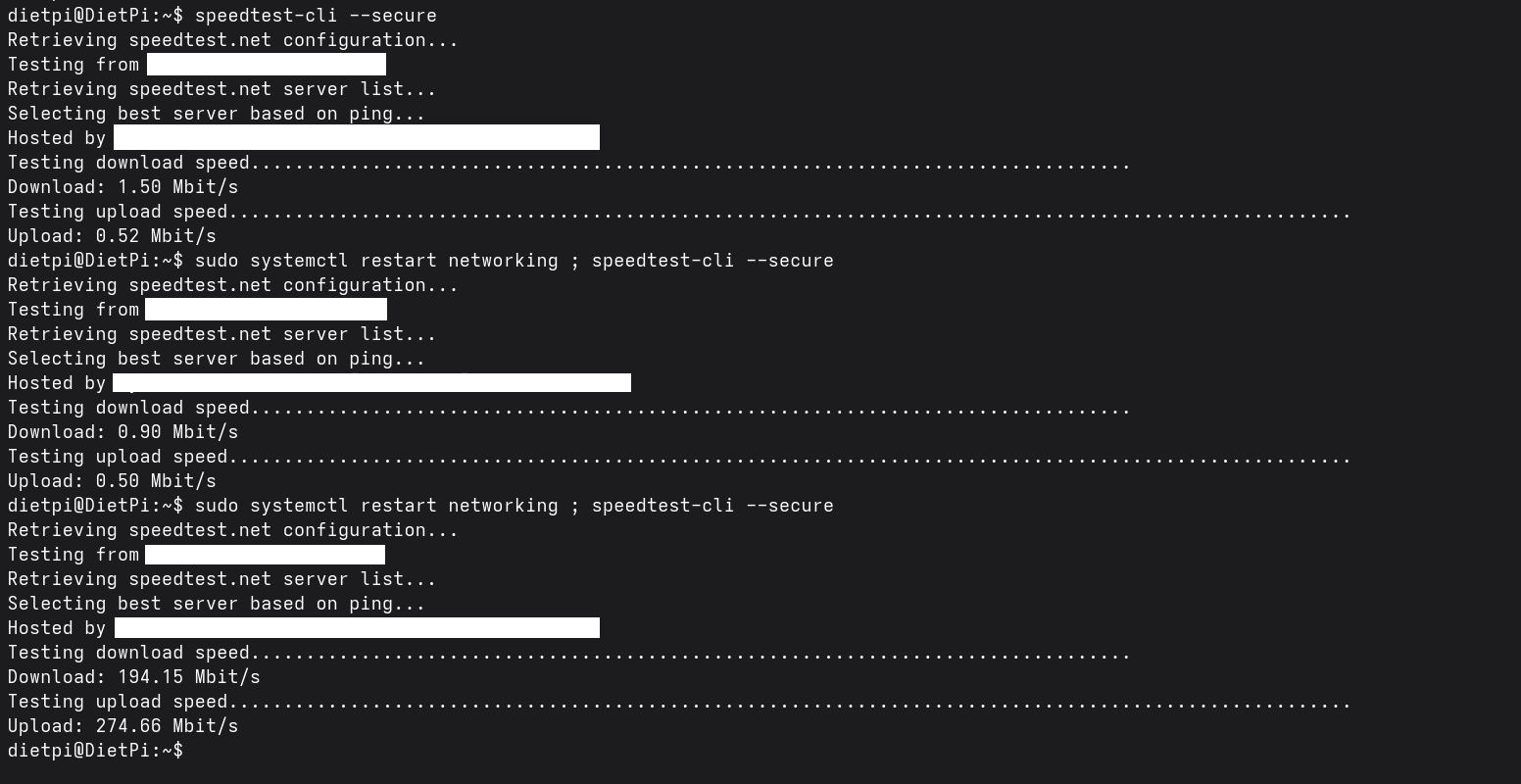
Past few days I tried some things including but still not real lead or answer. I changed the location of the Quartz to be on my desk instead of its normal location. That has given some better results: now sometimes I get the 200Mb transferspeed. I just have to trigger the network configuration by restarting the networking daemon:
before and after restarting networking. If the link parameters change, it would be a strong hint that this is link/PHY negotiation rather than a routing issue.
Except a message about a timeout for ATA there is no difference in the journal:
Jun 13 22:33:12 DietPi kernel: ata2.00: qc timeout after 5000 msecs (cmd 0x27)
Jun 13 22:33:12 DietPi kernel: ata2: SATA link up 6.0 Gbps (SStatus 133 SControl 300)
Those lines were present at the “good” start and absent at the bad one. More interesting is the difference in ethtool.
In the “bad” start, the “master-slave-status” item had “slave” as value whereas that property is set to “master” in the good start.
I tried your commands but the one to set the master-slave property returned an error “invalid value ‘master’”. So after some research I tried the following: