Signing into realvnc as non-root

Creating a bug report/issue

[ 1] I have searched the existing open and closed issues: yes and searched the web and not found a solution.

Required Information

  • root@DietPi:~# cat /boot/dietpi/.version
    G_DIETPI_VERSION_CORE=9
    G_DIETPI_VERSION_SUB=17
    G_DIETPI_VERSION_RC=2
    G_GITBRANCH=‘master’
    G_GITOWNER=‘MichaIng’
    G_LIVE_PATCH_STATUS[0]=‘not applicable’

  • Distro version | echo $G_DISTRO_NAME $G_RASPBIAN
    *bookworm 0

  • Kernel version | root@DietPi:~# uname --all
    Linux DietPi 6.1.21-v8+ #1642 SMP PREEMPT Mon Apr 3 17:24:16 BST 2023 aarch64 GNU/Linux

  • root@DietPi:~# dpkg --print-architecture
    arm64

  • root@DietPi:~# echo $G_HW_MODEL_NAME
    RPi Zero 2 W (aarch64)

  • Additional Information (if applicable)

  • Realvnc

I have a fresh(ish) install of dietpi using a 3rd party image that includes asto-imaging software. It installed cleanly and work OK so far.

I added the vnc server using the diet-pi software tool.

I have created a new user based on dietpi user and added it to the sudoers list.

I can ssh in to the new user and see the local home directory and create files that are owned by the new user.

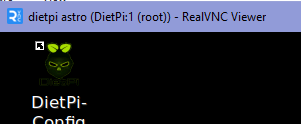
When I login using win10 realvnc I use my new user name and new user password BUT the realvnc window that appears is root. Top left says dietpi (DietPi:1 (root)) and if I open a LXterminal I see I’m user root.

I create a user using adduser and added it to the users on the pi.
I can sign in as this user but I still end up as root!

So could some one please give me some ideas or instructions on how to log in a non-root user.
Some of the app I intend to use will not run as root.

I will say that I’m delighted with the responsiveness of DietPi. I tried Astroberry but it was quite slow but still usable.

Many thanks
Andy

By default, vnc server is executed as root user. For non-root user, you would need to create an own configuration to be able to start a non-root user vnc server instance.

Maybe not same but an old similar topic about multi-user in VNC:need help - #5 by MichaIng that can be used as starting point

That info is probably too old to even use as starting point. The VNC server generally uses the default startx-like startup method. With a physical screen, that is difficult to do as non-root users, since it requires various permissions to access video and console devices, and it is also not common. To login a local desktop session as non-root users, one usually starts the X session as root, but uses a graphical login prompt as default X client, e.g. LightDM. When installing/enabling LightDM, if I am not mistaken, also virtual VNC desktops should show it. So you first authenticate with the VncAuth password, see the graphical login prompt, and can login as any non-root user from there, just the way it works for local desktop sessions. Auto-login as non-root user can be also done via LightDM config, the way dietpi-autostart does it when selecting desktop auto-login and a non-root user from there.

We could actually add some option somewhere to install and configure LightDM, that it works with VNC the intended way, but without starting it automatically for a local desktop session, i.e. for VNC only (or manual startx calls from local console).

While the VNC server does not need to display the X session on a local monitor, it still needs to renders stuff locally. Not sure how much permissions that requires, i.e. whether this works better with non-root users compared to a true local X session.

To test, first of all create a VncAuth password for virtual RealVNC desktop sessions with the desired non-root user:

vncpasswd -virtual

This creates ~/.vnc/config.d/Xvnc. There seems to be another marker needed. I remember there was some startup issue without it:

touch ~/.vnc/config.d/.Xvnc-v5-marker

Then edit the service /etc/systemd/system/vncserver.service and change the User= and HOME= values to point to the desired non-root user and its home dir. Then test:

systemctl daemon-reload
systemctl restart vncserver
sleep 5
journalctl -u vncserver

This will most likely throw some permissions issues, accessing video devices. Something so start from.

Thanks for your replies.
@ Joulinar I had a read through those posts but nothing helped and I got very confused. If I create a new “address” on the win10 machine I can connect using the user password. After that I have to use the root password and the user name does not come up in the user dropdown. Not a DietPi issue.

@MichaIng
I have run through your suggestions and some joy.
From another thread I have altered /boot/dietpi.txt to the following

# VNC Server
SOFTWARE_VNCSERVER_WIDTH=1280
SOFTWARE_VNCSERVER_HEIGHT=720
SOFTWARE_VNCSERVER_DEPTH=16
SOFTWARE_VNCSERVER_DISPLAY_INDEX=1
SOFTWARE_VNCSERVER_SHARE_DESKTOP=1

No help couln’t vnc in.
Reverted back and can vnc in as user but reverts to root.

Did the suggested action and the vncserver runs for the user for 90secs after boot and then stops.

astro@DietPi:~$ sudo journalctl -u vncserver
Oct 18 08:35:31 DietPi systemd[1]: Started vncserver.service - VNC Server (DietPi).
Oct 18 08:35:31 DietPi (ncserver)[469]: pam_unix(login:session): session opened for user astro(uid=1002) by (uid=0)
Oct 18 08:37:05 DietPi systemd[1]: vncserver.service: Main process exited, code=exited, status=1/FAILURE
Oct 18 08:37:05 DietPi systemd[1]: vncserver.service: Failed with result 'exit-code'.
astro@DietPi:~$

I don’t know how to get more info about why it stops.

Any more ideas please
Cheers
Andy

With a shared desktop it is an entirely different thing, as this requires a local X session anyway, and automatically connects to that existing local X session.

If you do not actually have monitor and keyboard attached and make use of that local X session, it is a certain overhead, but also much easier to configure with VNC for non-root sessions: Just dietpi-autostart to enable desktop LightDM login mask, or auto-login with the desired non-root user. The X session starts at boot, and RealVNC (our vncserver.service) automatically connects to that one. The VNC server itself must still start as root, like the local X server does, but the desktop session will be with the login prompt or non-root user autologin as you selected in dietpi-autostart.

The steps I mentioned above are for virtual VNC sessions (SOFTWARE_VNCSERVER_SHARE_DESKTOP=0), where the VNC server itself starts an own X session that does not show up on and interfere with any local screen, not needed for shared sessions. Revert the changes to /etc/systemd/system/vncserver.service when using SOFTWARE_VNCSERVER_SHARE_DESKTOP=1.

Thank you.

I did revert back after finding I could not vnc in.

Then I implemented your suggested changes the vnc server opens a session for user astro but then stops after about 90secs, logs in my previous post.

So I’m no further forward.

I want to be able to control this Pizero2W remotely and run apps in non-root. I’ve had success with it in the past with other debian derived systems.
Is there an alternative on DietPi I could use that will run non-root without too much effort. I tried tigerVCN but ran into the same issues. ie after installation I could only login as root.

I have also tried xrdp so I could use rdp on windows 10. This show a blank desktop and disconnects after a few seconds.

Oct 18 14:48:16 DietPi xrdp[1695]: [INFO ] connecting to sesman on 127.0.0.1:3350
Oct 18 14:48:16 DietPi xrdp-sesman[469]: [INFO ] Socket 12: AF_INET6 connection received from ::1 port 56784
Oct 18 14:48:16 DietPi xrdp[1695]: [INFO ] xrdp_wm_log_msg: sesman connect ok
Oct 18 14:48:16 DietPi xrdp[1695]: [INFO ] sesman connect ok
Oct 18 14:48:16 DietPi xrdp[1695]: [INFO ] sending login info to session manager. Please wait...
Oct 18 14:48:16 DietPi xrdp-sesman[469]: [INFO ] Terminal Server Users group is disabled, allowing authentication
Oct 18 14:48:16 DietPi xrdp-sesman[469]: [INFO ] ++ created session (access granted): username root, ip ::ffff:192.168.0.107:18552 - socket: 12
Oct 18 14:48:16 DietPi xrdp-sesman[469]: [INFO ] starting Xorg session...
Oct 18 14:48:16 DietPi xrdp-sesman[469]: [INFO ] Starting session: session_pid 1696, display :10.0, width 1280, height 800, bpp 24, client ip ::ffff:192.168.0.107:18552 - socket: 12, user name root
Oct 18 14:48:16 DietPi xrdp-sesman[469]: [ERROR] sesman_data_in: scp_process_msg failed
Oct 18 14:48:16 DietPi xrdp-sesman[1696]: [INFO ] [session start] (display 10): calling auth_start_session from pid 1696
Oct 18 14:48:16 DietPi xrdp-sesman[469]: [ERROR] sesman_main_loop: trans_check_wait_objs failed, removing trans
Oct 18 14:48:16 DietPi xrdp[1695]: [INFO ] xrdp_wm_log_msg: login successful for user root on display 10
Oct 18 14:48:16 DietPi xrdp[1695]: [INFO ] login successful for user root on display 10
Oct 18 14:48:16 DietPi xrdp[1695]: [INFO ] loaded module 'libxup.so' ok, interface size 10296, version 4
Oct 18 14:48:16 DietPi xrdp[1695]: [INFO ] started connecting
Oct 18 14:48:16 DietPi xrdp[1695]: [INFO ] lib_mod_connect: connecting via UNIX socket
Oct 18 14:48:16 DietPi xrdp-sesman[1696]: pam_unix(xrdp-sesman:session): session opened for user root(uid=0) by (uid=0)
Oct 18 14:48:18 DietPi xrdp[1695]: [INFO ] lib_mod_log_peer: xrdp_pid=1695 connected to X11rdp_pid=1706 X11rdp_uid=0 X11rdp_gid=0 client_ip=::ffff:192.168.0.107 client_port=18552
Oct 18 14:48:18 DietPi xrdp[1695]: [INFO ] connected ok
Oct 18 14:48:18 DietPi xrdp-sesman[469]: [INFO ] Process 1696 has exited
Oct 18 14:48:18 DietPi xrdp-sesman[469]: [INFO ] ++ terminated session:  username root, display :10.0, session_pid 1696, ip ::ffff:192.168.0.107:18552 - socket: 12

This is nominally the same fo root and normal user.

Any thoughts?

Andy

DietPi is Debian as well, using the same packages. So whatever works on Debian generally works on DietPi as well, vice versa. On Raspberry Pi some GUI packages are coming from the RPi Ltd repo archive.raspberrypi.org, tailored for RPi hardware acceleration in some cases, tailored for the RPi OS LXDE-based desktop in some other ones, though we try to block all of the latter ones, since they cause some conflicts with when aiming to install the original LXDE or other desktop environments, and cause other issues on distro upgrades (like Debian 12 Bookworm => Debian 13 Trixie).

Generally you could try it with Raspberry Pi OS. The non-Lite variant moreless locks you into the RPi desktop, but it should be very complete, tailored for RPi. You can install the same RealVNC APT package realvnc-vnc-server, it comes with two separate systemd services, one for virtual and one for connecting to a local desktop session.

Hmm, the XRDP session manager has issues, as if there was no X client started at all. Just to be sure, running startx on a local console starts up an actual desktop or LightDM login mask on a locally attached monitor? Which desktop did you install? I’ll try to replicate and see whether I can get this working with non-root user. I have no RPi Zero 2W but an RPi 5, which should behave moreless the same.

Many thanks for your response.

As a run down of where I’m coming from:
I have tried Raspberry pi OS, with and without desktop and compared to dietpi they are sluggish.
I installed VNC on a system I have running
Linux XXXXXX 6.12.47+rpt-rpi-v8 #1 SMP PREEMPT Debian 1:6.12.47-1+rpt1~bookworm (2025-09-16) aarch64
This installs wayvnc and works with a normal user with no apparent issues.

My aim is to run a telescope from a RPiZ2W from a small battery. So far I can run the RPiZ2 for over 12hrs on a 1000mAh USB battery.
I have tried the original Astroberry but it is out of date and sluggish. I tried a newer version which runs on DietPI and the image is for RPiZ2w. These apps will not run as root and I can only use them in a desktop.

If I install raspberry pi os I will end up with a sluggish machine again and I will have to manually load the apps some of which I’m not familiar with.

DietPi is very responsive so should be a good solution.

So:
I unstalled tigerVNC, rebooted and
Installed LXDE + Xrdp
X11 gets installed as well
I used LightDM login mask

Updated locales, keyboard and time-zone because I noticed I hadn’t
Using RDT on windows 10:

Logging in as normal user gives blue screen which closes after a few seconds.
Windows Rdt informs me

Which I assume corresponds to the log entries

[ERROR] Cannot read private key file /etc/xrdp/key.pem: Permission denied

and

[WARN ] Cannot accept TLS connections because certificate or private key file is not readable. certificate file: [/etc/xrdp/cert.pem], private key file: [/etc/xrdp/key.pem]

ls -al gives

lrwxrwxrwx  1 root root    36 Oct 19 09:23 cert.pem -> /etc/ssl/certs/ssl-cert-snakeoil.pem
lrwxrwxrwx  1 root root    38 Oct 19 09:23 key.pem -> /etc/ssl/private/ssl-cert-snakeoil.key

so link permissions OK
but

-rw-r----- 1 root ssl-cert 1704 Oct 19 09:23 ssl-cert-snakeoil.key

-rw-r--r-- 1 root root 1078 Oct 19 09:23 /etc/ssl/certs/ssl-cert-snakeoil.pem

So I brute forced a chmod 777 to the two files and now I don’t get the error in the log but the desktop opens and closes immediately.

I reverted the chmods and it doesn’t complain any more. Don’t understand this unless the certs have inherited the link’s permissions.

I installed the cert on the windows machine but it still complains so I accept the error each time.
It’s telling me that the server name is incorrect and it’s not from a trusted authority.

SO!!
I read the last para of your post and ran startx from a root terminal and used rdt to login as root and the blank (black) desk top persisted for several attempts but something changed and it no longer opens with x running or not.

I’m confused!

the journalclt -u xrdp shows connected ok even after the windows side has closed


Oct 19 11:31:54 DietPi xrdp[480]: [INFO ] Socket 12: AF_INET6 connection received from ::ffff:192.168.0.107 port 14158
Oct 19 11:31:54 DietPi xrdp[2242]: [INFO ] Using default X.509 certificate: /etc/xrdp/cert.pem
Oct 19 11:31:54 DietPi xrdp[2242]: [INFO ] Using default X.509 key file: /etc/xrdp/key.pem
Oct 19 11:31:54 DietPi xrdp[2242]: [INFO ] Security protocol: configured [SSL|RDP], requested [SSL|HYBRID|HYBRID_EX|RDP], selected [SSL]
Oct 19 11:31:54 DietPi xrdp[2242]: [INFO ] Connected client computer name: ANOTHER-PC
Oct 19 11:31:54 DietPi xrdp[2242]: [WARN ] Received [MS-RDPBCGR] TS_UD_HEADER type 0xc006 is unknown (ignored)
Oct 19 11:31:54 DietPi xrdp[2242]: [WARN ] Received [MS-RDPBCGR] TS_UD_HEADER type 0xc00a is unknown (ignored)
Oct 19 11:31:54 DietPi xrdp[2242]: [INFO ] xrdp_load_keyboard_layout: Keyboard information sent by the RDP client, keyboard_type:[0x04], keyboard_subtype:[0x00], keylayout:[0x00000809]
Oct 19 11:31:54 DietPi xrdp[2242]: [INFO ] xrdp_load_keyboard_layout: model [] variant [] layout [gb] options []
Oct 19 11:31:54 DietPi xrdp[2242]: [INFO ] TLS connection established from ::ffff:192.168.0.107 port 14158: TLSv1.2 with cipher ECDHE-RSA-AES256-GCM-SHA384
Oct 19 11:31:54 DietPi xrdp[2242]: [INFO ] xrdp_caps_process_pointer: client supports new(color) cursor
Oct 19 11:31:54 DietPi xrdp[2242]: [INFO ] xrdp_process_offscreen_bmpcache: support level 1 cache size 5242880 MB cache entries 100
Oct 19 11:31:54 DietPi xrdp[2242]: [INFO ] xrdp_caps_process_codecs: nscodec, codec id 1, properties len 3
Oct 19 11:31:54 DietPi xrdp[2242]: [WARN ] xrdp_caps_process_codecs: unknown codec id 5
Oct 19 11:31:54 DietPi xrdp[2242]: [INFO ] xrdp_caps_process_codecs: RemoteFX, codec id 3, properties len 49
Oct 19 11:31:54 DietPi xrdp[2242]: [INFO ] Loading keymap file /etc/xrdp/km-00000809.ini
Oct 19 11:31:54 DietPi xrdp[2242]: [WARN ] local keymap file for 0x00000809 found and doesn't match built in keymap, using local keymap file
Oct 19 11:32:01 DietPi xrdp[2242]: [INFO ] connecting to sesman on 127.0.0.1:3350
Oct 19 11:32:01 DietPi xrdp[2242]: [INFO ] xrdp_wm_log_msg: sesman connect ok
Oct 19 11:32:01 DietPi xrdp[2242]: [INFO ] sesman connect ok
Oct 19 11:32:01 DietPi xrdp[2242]: [INFO ] sending login info to session manager. Please wait...
Oct 19 11:32:01 DietPi xrdp[2242]: [INFO ] xrdp_wm_log_msg: login successful for user root on display 10
Oct 19 11:32:01 DietPi xrdp[2242]: [INFO ] login successful for user root on display 10
Oct 19 11:32:01 DietPi xrdp[2242]: [INFO ] loaded module 'libxup.so' ok, interface size 10296, version 4
Oct 19 11:32:01 DietPi xrdp[2242]: [INFO ] started connecting
Oct 19 11:32:01 DietPi xrdp[2242]: [INFO ] lib_mod_connect: connecting via UNIX socket
Oct 19 11:32:02 DietPi xrdp[2242]: [INFO ] lib_mod_log_peer: xrdp_pid=2242 connected to X11rdp_pid=2254 X11rdp_uid=0 X11rdp_gid=0 client_ip=::ffff:192.168.0.107 client_port=14158
Oct 19 11:32:02 DietPi xrdp[2242]: [INFO ] connected ok

Now I hope I haven’t swamped you with useless info but there is obvious a permission error as you predicted, and for some reason the desktop/rdt windows closes.

I suppose I could try the wayland vnc but you indicated that “other” apps may have conflicts.

So I’m looking for suggestions.

Many thanks
Andy
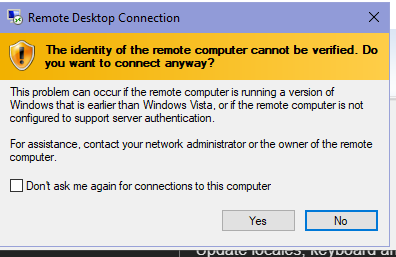
Did you install XRDP via dietpi-software? It runs as xrdp user, which requires access to the key, which is, as you showed, a symlink to the snakeoil key by default. In dietpi-software we hence do usermod -aG ssl-cert xrdp, adding xrdp to the ssl-cert group, which grants it read access to the snakeoil key (not needed for the public cert).
Note to myself, open MR to add this to the Debian package: debian/xrdp.postinst · master · Debian Remote Packaging Team / xrdp · GitLab

And of course the snakeoil cert is not from a trusted authority, which is why it is called snakeoil cert :wink:. So this is for encryption only, but cannot guarantee authenticity. For that you would need a TLS certificate from a public CA like Let’s Encrypt, use that one as well as the related public domain name to connect to the RDP server. The snakeoil cert is not really meant for long-term usage, but more for testing/setting up things. But within strictly isolated and trusted local networks it might be enough. This is probably also the reason the Debian XRDP maintainer did not even think about making it work with that, but IMO not great to ship it with a config that must fail OOTB.
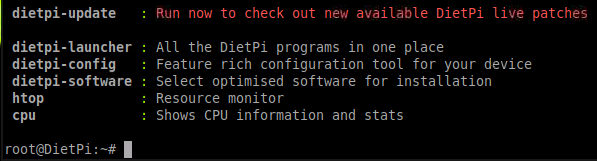
So as far as I understand, startx doesn’t work either? For LightDM, since Trixie, KMS is strictly needed. We added this to dietpi-autostart to be enabled automatically in this case, but just to be sure:

/boot/dietpi/func/dietpi-set_hardware rpi-opengl vc4-kms-v3d

and reboot to apply the change, if this was not the case yet.

Many thanks for your assistance.

I decided to download a current image from your site DietPi_RPi234-ARMv8-Bookworm.img.xz

It works in that realvnc still takes you to root user no matter which user you use.

But XRDP works and allows you to log on as a normal user.

The image that I originally used was Zero2W_64bit_DietPi_OLVWM.img.xz by Harald Martin, which was dietpi + astro imaging software.

On his image he used the OLVWM instead of LXDE. It could be possible that this caused conflict with XRDP.

I’m going to try a fresh start with the image I originally used and try to remove OLVMW manually and install LXDE from the dietpi installer to see if XRDP will work just to see where the issue lies.

Fresh start same problems.
I did note that you said startx should produce a desktop on a monitor but it didn’t.

As I’m not using the latest dietpi and the image is not straight from you guys I think we may be wasting time.
I’m going to see if I can add the astro packages to the latest dietpi image and use rdp for control.

Many thanks for you help.

Andy

Even if you select LightDM in dietpi-autostart, and if you select desktop auto-login with different user?

I’m not sure.
How do you achieve that.
I’ve got the Autostart Options from DietPi-Config menu in front of me.
I’ve highlighted LightDM login mask and hit return.
Selected Automatic login hit return and selected the new user.
Exited out.

The new user has sudo rights.

Using realvnc on my PC I’ve logged in at 192.168.0.115:1 as the new user using it’s password and top left of window shows

LXterminal


Went to realvnc tool on the pi and added new user
logged back in and same window appears logged in as root.
Just confirmed I’ve not mixed up my sd cards

oot@DietPi:~# cat /boot/dietpi/.version
G_DIETPI_VERSION_CORE=9
G_DIETPI_VERSION_SUB=18
G_DIETPI_VERSION_RC=1

Removed user from sudoers
Same result

Reboot.
Same result.

Does this info help

Some more info.
I tried another of the astro distributions and I was able to login using realvnc as a non-root user but the screen settings were wrong.
So I used the dietpi-config tool to change the resolution and after that no matter what user I choose (even ones not on the pi) it always logs in as root but displayed the user name in the title bar.
So this is a config issue on the settings somewhere .

I have re-run config and set (2) Automatic Login to dietpi. and selected LightDM (16)
Reboot
No change
So the autologin selection is not working or I’m doing it wrong.

I think you are mixing the two possible options. I just tested it on RPi 5 and these work well here, on a fresh DietPi Trixie system, after install RealVNC with LXDE:

  1. sudo systemctl stop vncserver
    # Assure shared desktop mode is used
    G_SUDO G_CONFIG_INJECT 'SOFTWARE_VNCSERVER_SHARE_DESKTOP=' 'SOFTWARE_VNCSERVER_SHARE_DESKTOP=1' /boot/dietpi.txt
    # Enable LightDM login
    dietpi-autostart 16
    # Alternatively use desktop autologin (2) with desired user
    dietpi-autostart
    sudo systemctl restart lightdm
    sudo systemctl start vncserver
    
    • Connect to 192.168.1.15:0 with TigerVNC viewer or RealVNC viewer, both work here
    • See LightDM on the VNC viewer or the desktop session with the selected user respectively. Note that LightDM is used in both cases, but in case of non-root autologin configured via /etc/lightdm/lightdm.conf.d/dietpi-autologin.conf to automatically login with the selected user. For the VNC server, it does not make any difference, it just connects to whichever existing X session. If no HDMI screen is attached, it uses a relatively low resolution 1024xsomething or so, which can be surely configured in X11 settings somewhere. I could not find a way to configure it in LXDE GUI. The monitor settings panel just says that no monitor is attached, hence resolution cannot be changed :sweat_smile:. Works well, of course, with a monitor attached. However, the other way with a virtual VNC session is better anyway, see option 2:
  2. Running the VNC server as non-root user for virtual sessions works actually pretty well. It does not require any additional permissions, systemd-logind and/or polkitd, and a /usr/bin/Xvnc -rootHelper helper process seem to manage everything. The needed steps as astro user:
    sudo systemctl stop vncserver
    # Disable desktop autostart and stop LightDM
    dietpi-autostart 0
    sudo systemctl stop lightdm
    # Create VncAuth password for virtual VNC sessions
    vncpasswd -virtual
    # Adjust `vncserver.service` to run as astro user
    sudo mkdir /etc/systemd/system/vncserver.service.d
    cat << '_EOF_' | sudo tee /etc/systemd/system/vncserver.service.d/astro.conf
    [Service]
    User=astro
    Environment=
    Environment=HOME=/home/astro
    _EOF_
    # Note: no typo with doubled Environment, the first is to clear the existing one, since those directives stack
    sudo systemctl daemon-reload
    # Assure that the service starts with a virtual session
    G_SUDO G_CONFIG_INJECT 'SOFTWARE_VNCSERVER_SHARE_DESKTOP=' 'SOFTWARE_VNCSERVER_SHARE_DESKTOP=0' /boot/dietpi.txt
    # Restart service
    sudo systemctl start vncserver
    
    • Connect to 192.168.1.15:1
    • Note that for virtual sessions, the resolution selected via dietpi-config or dietpi-display do not matter, but it needs to be set via /boot/dietpi.txt:
      SOFTWARE_VNCSERVER_WIDTH=1280
      SOFTWARE_VNCSERVER_HEIGHT=720
      SOFTWARE_VNCSERVER_DEPTH=16
      

Generally, in both cases, I’d use KMS, i.e:

/boot/dietpi/func/dietpi-set_hardware rpi-opengl vc4-kms-v3d

On Trixie, when going with option 1, the autostart options enable KMS automatically, since LightDM requires it. Not sure whether RealVNC does so or not, but it should perform better as well. Resolution for local desktop sessions (only relevant for option 1) can btw not be controlled with dietpi-config or dietpi-display (the latter when using KMS). Those are relevant only for the bare console resolution. X11 has its own resolution settings, changed from the desktop GUI, in X11 config files or via CLI arguments (which is how we set it for virtual VNC sessions).

Now RPi 5 could theoretically behave different than RPi Zero W, and Bookworm could behave different than Trixie. But at least the RealVNC package is the exact same in all cases, it has just been copy&pasted into the Trixie suite, no new build. And the kernel is the same version 6.12.47-1+rpt1 as well. It has a ~bookworm suffix on Bookworm, but not sure whether there are any actual differences. Means: worth to give it a try with the above instructions for either of the 2 options.

Sorry about the delay in getting back.
I have tried option 1 and I find I can log in with RealVNC but I had to use the root password, but it logged me in as the intended user.
This gets me what I need.
I did try option 2 but I did not log the details and can’t remember exactly what the results were but it wasn’t significantly different to the first option from my user objectives.
Many thanks for you help.
I can now use the astrodietpi set up.
Cheers
Andy

1 Like

Right that is expected: There server still runs as root and connects authenticated clients to whichever X session is up. It “does not know” which user is logged in locally or whether any user is logged in at all, but just displays what the local HDMI screen displays (or would display if attached), nothing more.

There the VNC server itself runs as “astro” user, hence also the VNC password you created on console for that user counts, not the root password. And it creates its very own X session, instead of connecting to whichever X session that runs. So it is definitely the cleaner method if you want to connect with that user only.

But yeah, with desktop autostart + autologin enabled, practically one won’t notice much difference, other than either one or the other password is used.

Anyway, I am glad it works for you as well now. Just adding this to my bookmarks in case we want to add this as native feature into our scripts. Since we use dietpi.txt settings right now, adding one more to set a different user for the virtual mode is not a big deal. It would set HOME where needed and use runuser (to switch to the different user) inside the called script, to not require vncserver.service changes.