Cannot access machine via ssh no permissions, boot possibly corrupted?

I ran dietpi-update to the latest version today and it changed a few things:

  • kernal update
  • Big Jellyfin update

I basically just run my dietPi machine as a media server and fortunately my media is on a separate NAS, I run dietPi off a 64GB USB stick.

When resuming from the update initially things were good, all except Jellyfin, all other services seemed to start up fine.

$ sudo journalctl -u jellyfin showed me a couple of issues, /tmp and /var/log were out of space, I’ve already seen the other post here that explains what to do in that situation so I went and made edits to my /etc/fstab.

Unfortunately I rebooted a little too eagerly perhaps, but after I set the logs to 1GB and the tmp to 2.1GB I restarted and saw that services appeared to launch, then Jellyfin even showed a plain white screen saying the migration was taking place and I should check logs to see progress.

Going back to the terminal any command said I did not have permission…

I exited ssh and tried to log in again, but I did not have permission…

I pulled out the power (there’s no reset button on the Rpi-4) reconnected and tried to ssh again, again I did not have permission.

upon trying again I get told that ssh: connect to host 192.168.1.69 port 22: No route to host

I have ejected the USB stick and connected it to my Desktop, and run fsck, it showed that there are differences between boot sector and it’s backup, so I followed the prompts to copy backup to original, and I also removed a dirty bit it identified, but this didn’t work when I tried rebooting from it, same issues.

The file system seem uncorrupted, I can browse through everything.

Is there a way to restore this machine without re-installing?
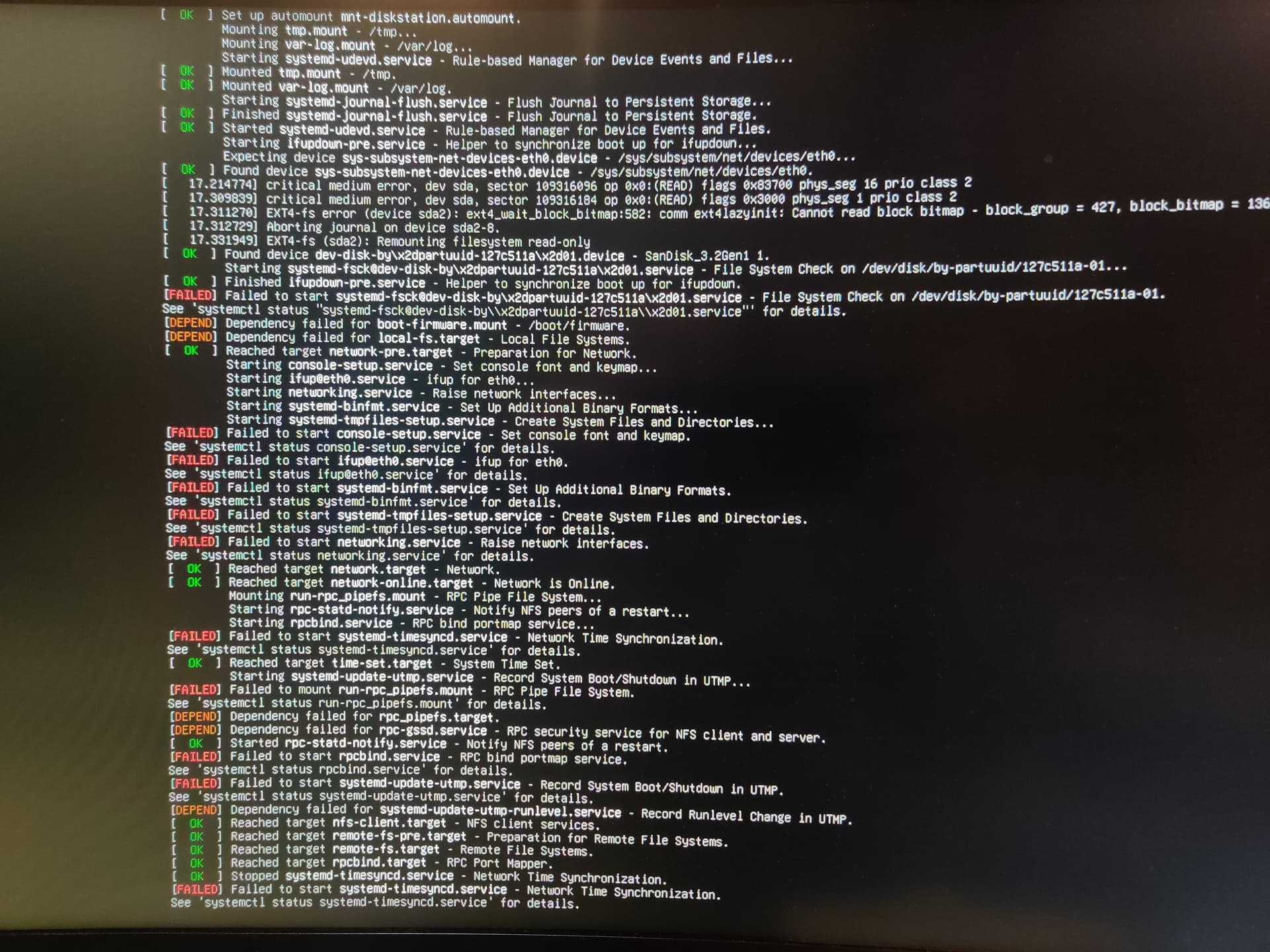
first step, get a screen and keyboard connected to check if the system is booting fine.

Good idea…

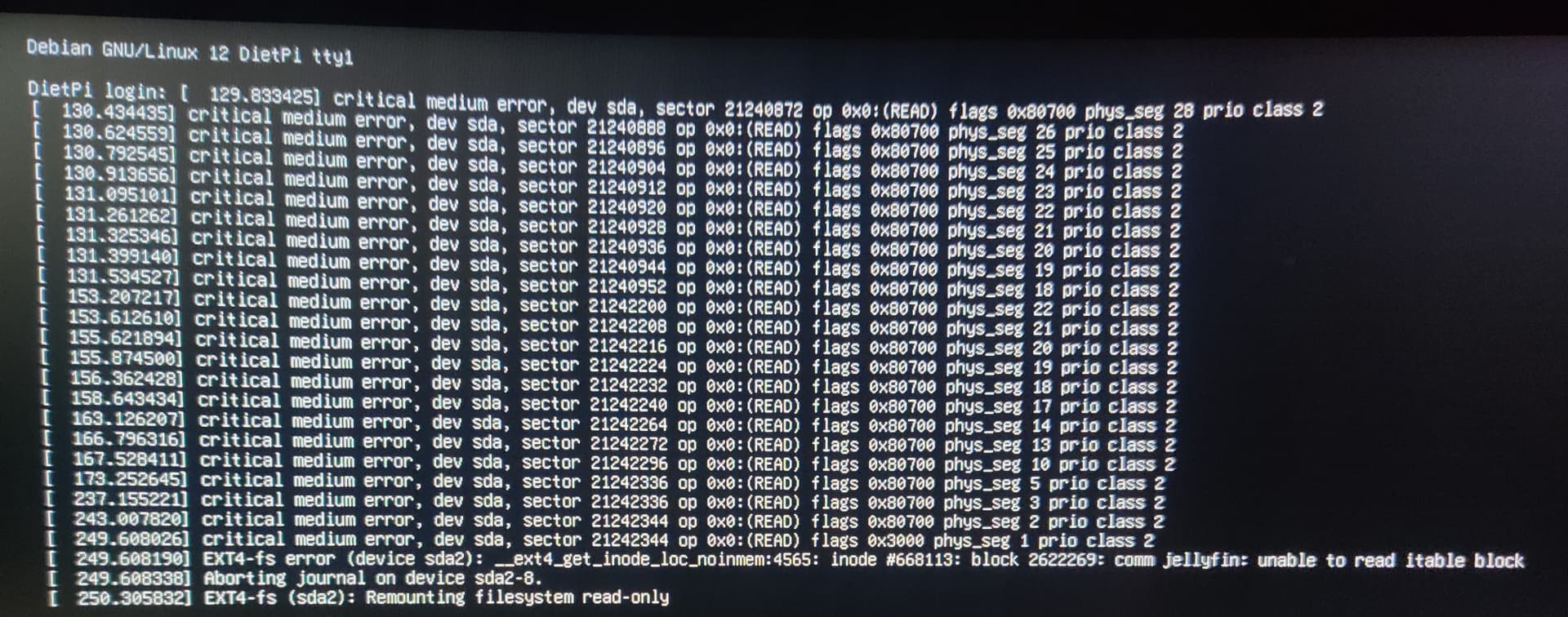
I tried this and it didn’t look good, screenshot attached

Is there anyway I can save any data and have it reboot again?

try to boot your RPi4 from SD card and connect your external drive afterwards. This way you could do some more checks on the corrupted file system.

I have a desktop, can I just use that?

You reasonably could if your desktop runs Linux and has tools for checking ext4 filesystems (fsck.ext4). It looks like this might be the case from your original post. If you want to check SMART status as well (not sure how many USB drives actually have SMART), you can do that on your desktop. Otherwise, the easiest method is to do what Joulinar said and boot from an SD card on your RPi.

1 Like

Yeah it’s a linux system…

So, I ran smartctl, this is a USB pen drive that has 2 partitions a boot partition 128M, and the system partition 57.3G

smartctl 7.5 2025-04-30 r5714 [x86_64-linux-6.17.1-zen1-1-zen] (local build)
Copyright (C) 2002-25, Bruce Allen, Christian Franke, www.smartmontools.org

=== START OF INFORMATION SECTION ===
Vendor:               USB
Product:              SanDisk 3.2Gen1
Revision:             1.00
Compliance:           SPC-4
User Capacity:        61,524,148,224 bytes [61.5 GB]
Logical block size:   512 bytes
Serial number:        040113dc9a99acf01ce7
Device type:          disk
Local Time is:        Thu Oct 23 19:52:54 2025 BST
SMART support is:     Available - device has SMART capability.
SMART support is:     Enabled
Temperature Warning:  Disabled or Not Supported
Read Cache is:        Enabled
Writeback Cache is:   Disabled

=== START OF READ SMART DATA SECTION ===
SMART Health Status: OK
Current Drive Temperature:     0 C
Drive Trip Temperature:        0 C

Error Counter logging not supported

Device does not support Self Test logging
Device does not support Background scan results logging
Device does not support General statistics and performance logging

When I ran fsck /dev/sda1 I received a warning about the backup and the original being different, so I copied the backup to the original.

When I ran fsck /dev/sda2 I received warnings about corrupt blocks and attempted to fix them all, there were a lot…

Plugging the drive back into the R-Pi did boot and showed the login prompt, but each time I tried to login it ejected me back to the login, eventually I saw the following lines…

yes your drive is going into R/O mode. This indicated quite some damage on that drive.

Yes, looks like it, I did this to my old SD cards on the same machine, it happens when I have power outages…

So my questions are:

  • Is this drive dead?
  • If I have to format the drive, can I keep it clear of bad sectors?
  • I can access the file system so how would I restore backups for…
    • prowlarr
    • sonarr
    • radarr
    • bazarr
    • rtorrent

Running fsck /dev/sda1 on your desktop would check your desktop’s hard drive itself, be careful when doing things like that and make sure you’re targeting the correct drive (/dev/sda2 in this case), you could cause some serious damage with different commands.

Your drive is effectively dead. Replace it. The built-in badblocks tool is not designed to work on flash drives or any sort of solid-state drive, it will not work the way you want it to.

As far as backups go, you want to copy the dietpi_userdata directory, which will contain all your configs for *arr. Hopefully tools like rsync should work, but you might need to resort to ddrescue.

Cool, thanks for the info, I’ll have to buy another drive then.

Probably. Can you show the actual SMART values again, i.e. wear level/health percent?

smartctl -A /dev/sdX

No, if the drive has bad blocks, they usually remain broken. But the fsck tool for ext4 supports scanning for bad blocks and adding them to a special inode to prevent them from being used from that point on:

e2fsck -c /dev/sdX2

That is btw more advised than using badblocks directly, which finds them, but does not automatically add them to the bad blocks inode to ignore. You can feed the output of badblocks into fsck, but easier to use its -c option.

Could be done after flashing the system. Same for the FAT filesystem:

dosfsck -t /dev/sdX1

EDIT: Ah whether this even works as expected on flash drives, where the controller rotates physical sectors below logical blocks around, is actually a good point. I am wondering that the manpages are not clearly stating this, but it actually makes sense that the system/kernel has no way to know the physical sectors as this is all done and rotated in the flash drive controller, in theory.

  • /mnt/dietpi_userdata/prowlarr
  • /mnt/dietpi_userdata/sonarr
  • /mnt/dietpi_userdata/radarr
  • /mnt/dietpi_userdata/bazarr
  • /var/www/rutorrent

Basically, copy /mnt/dietpi_usedata as a whole and /var/www/rutorrent into the new filesystem after flashing the image, then install those software titles via dietpi-software. The data and configs within those dirs will be migrated.

1 Like

smartctl -A /dev/sda2 doesn’t return any attributes.

I’m running e2fsck but it’s taking a while

I don’t expect a pen drive to support this

Okay maybe SMART support != SMART support :sweat_smile:. Those statistics would give some rough hint whether the drive is expected to be at its end based on some hardcoded max writes and such.

True that. I just saw

SMART support is:     Available - device has SMART capability.
SMART support is:     Enabled

and expecting too much :smiley:.

I’m so sorry, I definitely made a mistake here. If it’s an RPi, /dev/sda1 would be the DOS boot partition. /dev/sda2 would be your EXT4 data partition. Your desktop drive is very likely located at a /dev/mmcblk*, but it could just as likely be /dev/sd* on a different system. Regardless, my point still stands. Always check which device you’re running commands on or there could be catastrophic data loss.

1 Like

My Desktop uses an nvme so I think I was fine with checking the sda1 thinking it was the USB

1 Like

This topic was automatically closed 90 days after the last reply. New replies are no longer allowed.